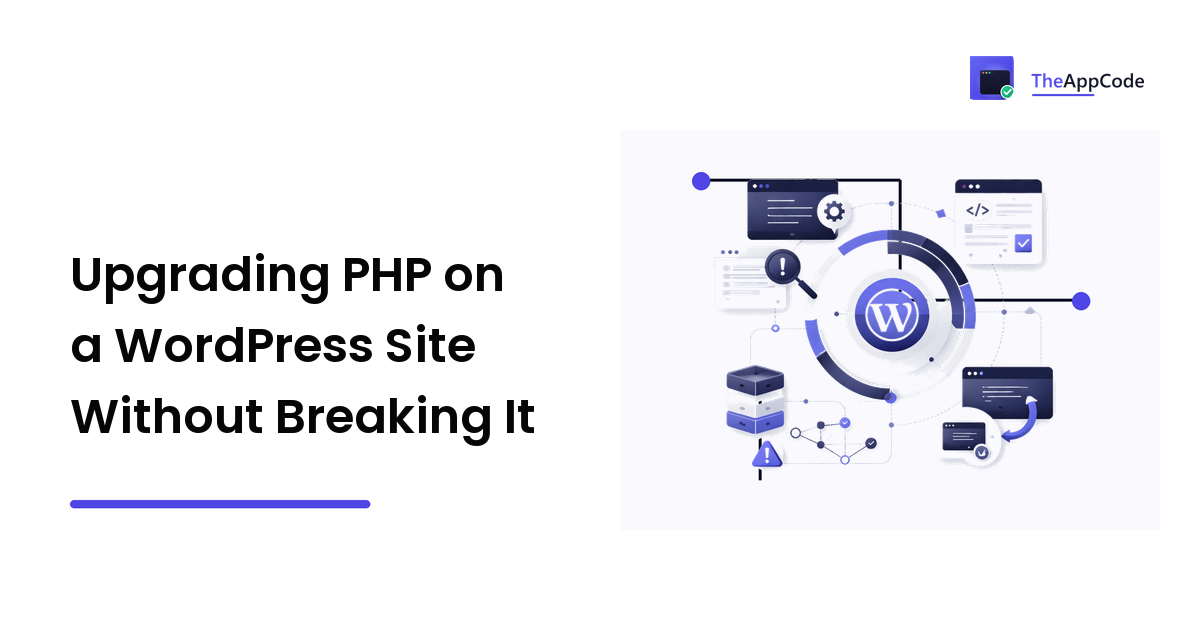
PHP upgrades are the maintenance task most WordPress sites postpone until someone else forces the decision — usually the host, with a deprecation notice and a date. The site works today, nothing visibly demands attention, and the upgrade is filed under "later." Then the cutover happens, a fifteen-year-old snippet in the theme's functions.php throws a fatal error, and the site is white.
None of that is inevitable. A PHP upgrade is one of the more predictable pieces of work in web operations, because the language documents exactly what it removes in each major release and the tooling to find that code in your repository is free. What makes it go badly is doing it blind and doing it live. This is the runbook for doing it neither way.
Why the version matters even when the site "works"
Two mechanisms, both mundane:
Security patches stop. PHP's own release cycle publishes, on php.net, which branches receive active support and which receive security fixes only, with dates. Once a branch falls off that list, no more patches ship for it — from anyone. That is not a scare statistic, it is a support policy you can read.
The ecosystem moves on. WordPress core states a minimum supported PHP version, and plugin and theme authors set their own floors. When you sit on an old branch long enough, updates you do want — the ones fixing bugs in the plugins you rely on — start requiring a runtime you don't have. The old version becomes the thing blocking every other update.
If nobody on your team owns this cycle, it is a legitimate thing to contract out; providers such as WPCare, a WordPress maintenance and server-management outfit in Malaysia, exist precisely because the work is routine, recurring, and easy to defer indefinitely when it is nobody's job. Whether it is your job or theirs, the sequence below is the same.
Step 1: find out what you're actually running
Do not trust the hosting control panel alone — the CLI, the web SAPI, and cron can run different builds on the same box, and that mismatch is its own class of bug.
php -v

# The version WordPress itself sees (web SAPI, via WP-CLI's environment)
wp --info

# What WordPress reports about its own environment
wp eval 'echo PHP_VERSION . " " . PHP_SAPI . PHP_EOL;'
In the admin, Tools → Site Health → Info → Server reports the PHP version the site is served with, plus the extensions loaded. Compare all of these. A site whose web requests run 7.4 while cron runs 8.2 will fail in ways that look random until you notice the split.
Step 2: scan the code before you touch the server
Most breakage comes from a handful of constructs that major releases removed outright. create_function() and each() were removed in PHP 8.0. Curly-brace string offsets ($str{0}) went with them. PHP 8.2 deprecated the creation of dynamic properties on classes and the ${var} form of string interpolation. Every one of those is findable statically.
The standard tool is PHP_CodeSniffer with the PHPCompatibility ruleset:
composer require --dev squizlabs/php_codesniffer phpcompatibility/php-compatibility

# Point the sniffer at the ruleset, then scan your own code
vendor/bin/phpcs -p wp-content/themes/your-theme wp-content/plugins/your-custom-plugin \
  --standard=PHPCompatibility \
  --runtime-set testVersion 8.2- \
  --extensions=php
Scan your code first — the custom theme, the client-specific plugin, any mu-plugins — because that is the code nobody else is patching. Third-party plugins from the directory are a different question, answered by their "tested up to" metadata and their changelogs, not by a sniffer run.
A clean scan is not a guarantee. It rules out the removed-syntax class of failure, which is the largest one, and it turns "we think it's fine" into a list.
Step 3: rehearse on a copy
Clone the site — files and database — into an environment where you can switch the PHP version independently of production, and turn logging up:
// wp-config.php, on the copy only
define( 'WP_DEBUG', true );
define( 'WP_DEBUG_LOG', true );
define( 'WP_DEBUG_DISPLAY', false );
Then walk a written smoke list rather than clicking around by feel. At minimum: the homepage and a deep post, a form submission end to end, login and admin dashboard, the checkout or booking flow if there is one, whatever runs on cron, and any scheduled export or feed. Reload debug.log after each. Deprecation notices are not fatal — they are your to-do list for later. Fatals and blank screens are the reason you are doing this on a copy.
The discipline here is the same one that governs any irreversible production change: rehearse the change, know the rollback, and never let the first execution be the real one. Our guide to zero-downtime database migrations walks through that pattern in more depth.
Step 4: cut over with a way back
Order of operations on production:
- Take a full backup — files and database — and confirm you can actually read it, not merely that the job reported success.
- Update plugins and themes first, on the old PHP version, so that when something breaks you know which change caused it. Two variables at once is how you spend a day bisecting.
- Switch the PHP version. On managed hosting this is usually a per-site selector; on your own server it is the FPM pool. Change one site at a time.
- Re-run the smoke list against production immediately.
- Leave the old version installed for as long as the host allows. Rollback should be a selector change, not a rebuild.
Keep the maintenance window short and boring. If step 4 finds a fatal, revert first and diagnose afterwards — investigating on a down site is how small problems become long outages.
Step 5: read the log for a week
The failures that survive a smoke test are the ones on paths nobody clicked: a monthly cron job, a payment gateway callback, an admin screen only the accountant opens. Watch debug.log and the server error log for a full business cycle after the cutover, and clear the deprecation backlog while the context is fresh. Then write the date down, check php.net for when your new branch leaves support, and put the next upgrade in the calendar instead of waiting for the host's email.
FAQ
Can I skip several major versions at once?
You can, and hosts often push you to. It works, but it stacks every removal from every intervening release into one change, so budget more rehearsal time and scan with the sniffer's testVersion set to the target, not an intermediate step. If the site is complex and the jump is large, going one major version at a time makes each failure easier to attribute.
Is a PHP upgrade risky?
The upgrade itself is a configuration change; the risk lives entirely in code you haven't inspected. Custom themes and bespoke plugins carry nearly all of it, because directory plugins get patched by their authors and yours does not. A static scan plus a rehearsal on a copy addresses most of it. What genuinely cannot be de-risked is an abandoned plugin with no upstream — that is a replacement decision, not an upgrade one.
Do I need to change PHP if my host says the site still runs?
"Still runs" and "still patched" are different claims. A branch past its security-support window keeps executing exactly as before; it just stops receiving fixes, and plugin authors progressively stop testing against it. The practical trigger is usually not risk appetite but dependency: sooner or later an update you need declares a floor above your version.
What if the site breaks after I've already switched?
Roll back the PHP version first, restore service, then reproduce on the copy with WP_DEBUG_LOG on. The stack trace in debug.log names the file and line; that is usually enough to identify whether the fix is a one-line change in your own code or a plugin that needs replacing.
Next step
Run php -v and open Site Health today, then run the compatibility sniffer over your own theme and custom plugins. That single hour converts an unknown into a list, and a list is schedulable. If the site matters commercially and no one on the team wants to own the upgrade cycle, put it on a maintenance retainer — a team like WPCare covers the WordPress and server side together, which is the combination that matters here, since the PHP version is a server decision with application consequences. Whoever does it: scan, rehearse, keep the rollback, and read the log for a week afterwards.